

Registry Editor Disabled By Administrator
Getting this error when you try to access the Registry Editor?
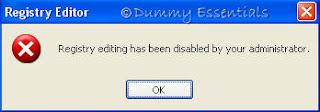 "Registry Editor has been disabled by your administrator."
You can get the Registry Editor to start working once again by following the steps illustrated below:
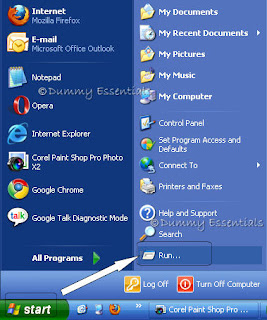
Begin by clicking on the "Start" menu on the taskbar. Followed which, click on "Run".
"Registry Editor has been disabled by your administrator."
You can get the Registry Editor to start working once again by following the steps illustrated below:
Begin by clicking on the "Start" menu on the taskbar. Followed which, click on "Run".
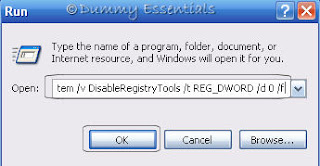
 In the "Run" window, type: (preferably copy and paste from here)
and click on "OK"
In the "Run" window, type: (preferably copy and paste from here)
and click on "OK"
 This would launch the Registry Editor.
There is another method to it. Using the Group Policy Editor.
For this, begin again by clicking on the "Start" menu on the taskbar. Followed which, click on "Run".
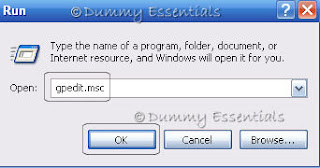
In the "Run" window, type: gpedit.msc and then click on "OK"
This would launch the Registry Editor.
There is another method to it. Using the Group Policy Editor.
For this, begin again by clicking on the "Start" menu on the taskbar. Followed which, click on "Run".
In the "Run" window, type: gpedit.msc and then click on "OK"
 Navigate to the following location:
User Configuration\ Administrative Templates\ System
In the right pane of the window, double click on "Prevent access to registry editing tools"
Navigate to the following location:
User Configuration\ Administrative Templates\ System
In the right pane of the window, double click on "Prevent access to registry editing tools"
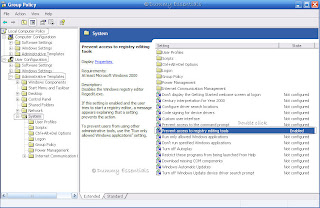 In the "Prevent access to registry editing tools properties" dialog box that opens, under the "Setting" tab, click on "Not configured" and then on "Apply" button and "OK".
This ensures that the "DisableRegistryTools" registry value is removed successfully.
In the "Prevent access to registry editing tools properties" dialog box that opens, under the "Setting" tab, click on "Not configured" and then on "Apply" button and "OK".
This ensures that the "DisableRegistryTools" registry value is removed successfully.
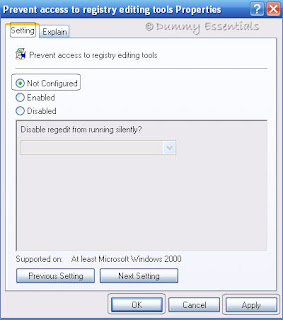 Close the Group Policy Editor and you would not get the Registry Editor disabled error anymore.
 "Registry Editor has been disabled by your administrator."
You can get the Registry Editor to start working once again by following the steps illustrated below:
Begin by clicking on the "Start" menu on the taskbar. Followed which, click on "Run".
"Registry Editor has been disabled by your administrator."
You can get the Registry Editor to start working once again by following the steps illustrated below:
Begin by clicking on the "Start" menu on the taskbar. Followed which, click on "Run".
 In the "Run" window, type: (preferably copy and paste from here)
REG add HKCU\Software\Microsoft\Windows\CurrentVersion\Policies\System /v DisableRegistryTools /t REG_DWORD /d 0 /f
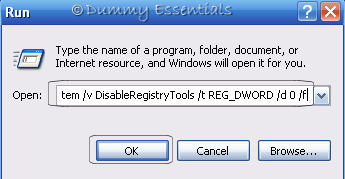 This would launch the Registry Editor.
There is another method to it. Using the Group Policy Editor.
For this, begin again by clicking on the "Start" menu on the taskbar. Followed which, click on "Run".
In the "Run" window, type: gpedit.msc and then click on "OK"
This would launch the Registry Editor.
There is another method to it. Using the Group Policy Editor.
For this, begin again by clicking on the "Start" menu on the taskbar. Followed which, click on "Run".
In the "Run" window, type: gpedit.msc and then click on "OK"
 Navigate to the following location:
User Configuration\ Administrative Templates\ System
In the right pane of the window, double click on "Prevent access to registry editing tools"
Navigate to the following location:
User Configuration\ Administrative Templates\ System
In the right pane of the window, double click on "Prevent access to registry editing tools"
 In the "Prevent access to registry editing tools properties" dialog box that opens, under the "Setting" tab, click on "Not configured" and then on "Apply" button and "OK".
This ensures that the "DisableRegistryTools" registry value is removed successfully.
In the "Prevent access to registry editing tools properties" dialog box that opens, under the "Setting" tab, click on "Not configured" and then on "Apply" button and "OK".
This ensures that the "DisableRegistryTools" registry value is removed successfully.
 Close the Group Policy Editor and you would not get the Registry Editor disabled error anymore.
Remove "Stand By" Option
Try out this if you wish to remove the "Standby" option from the Windows XP.
Begin by clicking on the "Start" menu on the taskbar. Followed which, click on "Run".
In the "Run" window, type: regedit and click on "OK"
 Navigate to:
HKEY_LOCAL_MACHINE \SYSTEM \ CurrentControlSet \ Services\ ACPI\ Parameters
Navigate to:
HKEY_LOCAL_MACHINE \SYSTEM \ CurrentControlSet \ Services\ ACPI\ Parameters
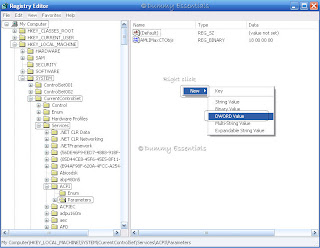
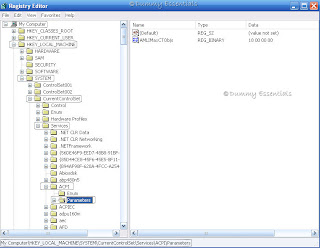 On the right side of the window, right click, select "New" and then click on "DWORD Value"
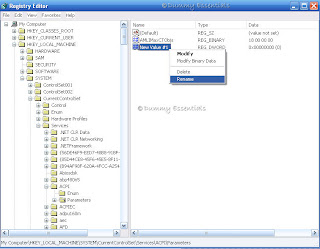
 Right click on the value to rename it as "Attributes".
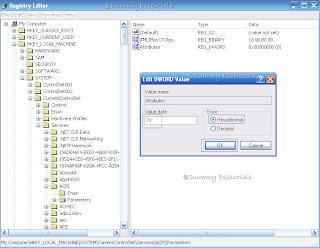
 Double click on "Attributes" to set its "Value data" to 70. Make sure that 'Hexadecimal" is selected.
 Click on "OK", exit the Registry editor, and reboot.
Now the next time when you Turn off your computer, you won't see the option "Standby".
Click on "OK", exit the Registry editor, and reboot.
Now the next time when you Turn off your computer, you won't see the option "Standby".
In the "Run" window, type: regedit and click on "OK"
 Navigate to:
HKEY_LOCAL_MACHINE \SYSTEM \ CurrentControlSet \ Services\ ACPI\ Parameters
Navigate to:
HKEY_LOCAL_MACHINE \SYSTEM \ CurrentControlSet \ Services\ ACPI\ Parameters
 On the right side of the window, right click, select "New" and then click on "DWORD Value"
 Right click on the value to rename it as "Attributes".
 Double click on "Attributes" to set its "Value data" to 70. Make sure that 'Hexadecimal" is selected.
 Click on "OK", exit the Registry editor, and reboot.
Now the next time when you Turn off your computer, you won't see the option "Standby".
Click on "OK", exit the Registry editor, and reboot.
Now the next time when you Turn off your computer, you won't see the option "Standby".
How To Backup a Registry In Win XP
It is always a good idea to backup the registry, as any changes made in the registry by mistake can hamper the proper functioning of your computer and also result in Windows crashing down.
Let us learn today, how to backup the registry in a few simple steps.
Start by clicking on the "Start" menu and then click on "Run"
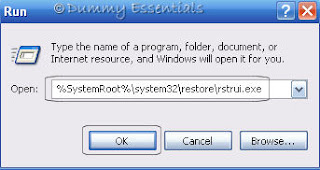
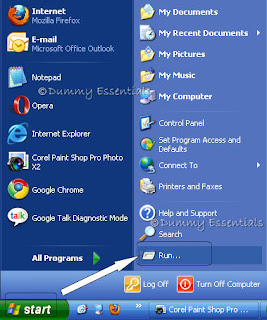 In the "Run" window, type:
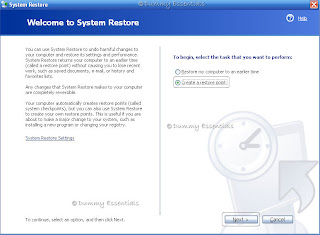
 In the "Welcome to System Restore" window that opens, click on "Create a restore point" and then click on "Next"
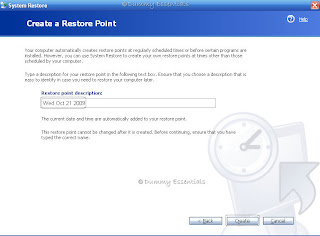
 In the next window "Create a Restore Point", type any name for the restore point in the "Restore point description" box and then click on "Create".
 Once the restore point has been created click on "Close".
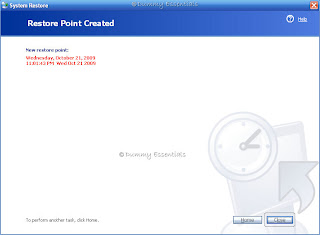 There you have created a backup for your registry! In the next section we will learn how to Restore the registry that we created a backup for.
 In the "Run" window, type:
%SystemRoot%\system32\restore\rstrui.exeand click on "OK"
 In the "Welcome to System Restore" window that opens, click on "Create a restore point" and then click on "Next"
 In the next window "Create a Restore Point", type any name for the restore point in the "Restore point description" box and then click on "Create".
 Once the restore point has been created click on "Close".
 There you have created a backup for your registry! In the next section we will learn how to Restore the registry that we created a backup for.
Set Num Lock "On" By Default
By following the steps mentioned below, you can keep the Num Lock to stay "On" by default. Here's how we go about doing it.
Go to "Start" menu and click on "Run".
In the "Run" window that opens, type "regedit" and click on "OK"
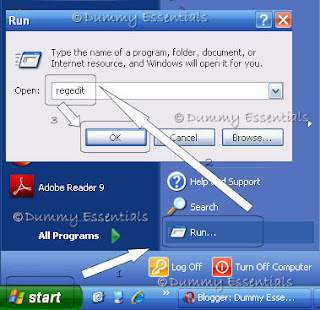 A Registry Editor window opens.
In the "Registry Editor", navigate to this path:
HKEY_USERS\ .DEFAULT\ Control Panel\ Keyboard
A Registry Editor window opens.
In the "Registry Editor", navigate to this path:
HKEY_USERS\ .DEFAULT\ Control Panel\ Keyboard
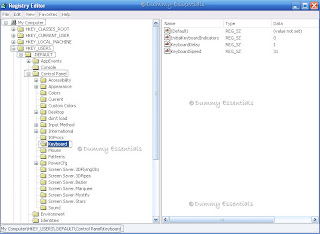 Right click on the right side of the window, double click on "InitialKeyboardIndicators" and in the "EditString" pop-up window that opens change the "Value Data" from 0 to 2
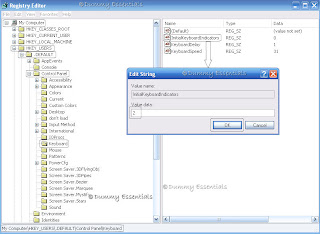 Close Registry Editor window and reboot to get your Num Lock to stay permanently On.
 A Registry Editor window opens.
In the "Registry Editor", navigate to this path:
HKEY_USERS\ .DEFAULT\ Control Panel\ Keyboard
A Registry Editor window opens.
In the "Registry Editor", navigate to this path:
HKEY_USERS\ .DEFAULT\ Control Panel\ Keyboard
 Right click on the right side of the window, double click on "InitialKeyboardIndicators" and in the "EditString" pop-up window that opens change the "Value Data" from 0 to 2
 Close Registry Editor window and reboot to get your Num Lock to stay permanently On.
Windows Registry!
The Windows Registry is a large database that stores all the information and settings for all the hardware, software and PC preferences. When a user makes changes to a Control Panel settings, or File Associations, or installed software, the changes are reflected and stored in the Windows Registry.
Everytime a change takes place, the registry is updated, and information is added to it. However this leads to the registry grows bigger with passage of time, slowing down your PC. The more software programs you install and de-install, the bigger your registry will grow. This leads to weaker computer performance and even worse, it can can cause crashes and blue screens. Optimizing your registry can improve your computers performance greatly, and it helps preventing and can solve computer problems. The manual cleaning of the Windows Registry is extremely complex and should only be performed by an expert. If done incorrectly you can seriously damage the Registry, which may result in bluescreens, your computer not booting anymore or data loss. Instead you can go in for a good registry cleaner, which would help solve all your problems.
Just to give an overview of what windows registry looks like and how to get in there, read through..
The Registry information is stored in 2 hidden files in your Windows\System directory, system.dat and user.dat
You can open and edit your registry file in Window by clicking: Start and then click on Run.

When the Run box opens, type in 'regedit' there (without the quotes) and click on OK.

This would open your Registry Editor window which looks like this:

To give a brief explanation of what each of the key on left hand side of the window indicates, here it follows:
1. HKEY_CLASSES_ROOT: stores information about registered applications, such as file associations, tying them to the applications used to handle these items. This subtree contains two types of data:
a) Data that associates file types with programs. The file type subkeys here have the same name as the file name extension example .exe File type associations are stored in the registry, but you should use Windows Explorer to change them. (In Windows Explorer, from the Tools menu, click Folder Options, and then click the File Types tab.)
b) Configuration data (exampe for Visual Basic programs)
2. HKEY_CURRENT_USER: This subtree contains the user profile for the user who is currently logged on to the computer. The user profile includes environment variables, personal program groups, desktop settings, network connections, printers, and application preferences. This subtree does not contain any data but provides easier access to the data.
3. HKEY_LOCAL_MACHINE: This subtree contains information about the local computer system, including hardware and operating system data, such as bus type, system memory, device drivers, and startup control parameters.
4. HKEY_USERS: This subtree contains all actively loaded user profiles. It has atleast 3 keys:
a) DEFAULT, which stores the profile used when no users are logged on to the computer (such as when the CTRL+ALT+DELETE logon prompt is displayed).
b) A subkey named for the Security Identifier (SID) of the current local user. This subkey contains the current user's profile. If the user is logged on remotely, the data for the user's profile is stored in the registry of the user's local computer.
c) A subkey named for the Security Identifier (SID) of the current local user with the _Classes suffix. This subkey contains the current user's Classes.
5. HKEY_CURRENT_CONFIG: This subtree stores configuration data for the current hardware profile. This subtree does not contain any data. It just stores a pointer to the content of the Hardware Profiles.
The folders inside Windows Registry window denote:
1) Open/selected folder: as you see in Windows Explorer
2) Closed folder: as you see in Windows Explorer
3) String Value: allows you to place certain values to certain aspects of a program such as a version number.
4) Binary Value: allows you to set attributes to a particular application, values are in binary.5) Dword: Similar to the binary value allowing you to set attributes; however, are done in binary and hexadecimal.


Listed/Ranked:
The Tech Directory
Cluster Maps