

Understanding Virtual Memory
When Windows XP runs out of memory, the 128MB or 256MB or even 512MB that you have in your PC, XP needs to shuffle things around quickly. That shuffling is called paging, and it’s accomplished by copying blocks of memory out to your hard disk.
Think of it this way. Many different programs are running on your computer at the same time. Each needs memory in order to accomplish its tasks. When programs want more memory, they ask Windows to hand some over. When programs are finished with a chunk of memory, they hand it back to Windows. Your memory rapidly turns into a patchwork quilt of chunks, with Windows taking care of parceling out chunks of memory when they’re requested and returning them to the available pool when they’re no longer needed.
Everything goes along swimmingly until Windows runs out of chunks of memory. Suddenly a program wants more memory, but Windows has already handed out every single chunk. Windows solves the problem by taking a snapshot of a chunk of memory and tossing that snapshot to the hard drive. It then gives the chunk of memory to the program that requested it.
At some point, the program that originally had the chunk of memory wants it back. No problem. Windows runs out to the disk, retrieves the snapshot, sticks it in memory, and hands that chunk over to the old program. (I won’t mention the fact that bringing the snapshot into memory may, itself, force Windows to take yet another snapshot and send it out to disk. And so on. But you get the picture.)
The snapshots of chunks of memory out on your disk are called virtual memory. Virtual memory sits in paging files. Here’s where speed comes in. Windows works like crazy getting programs and their data into the computer. It also works like crazy keeping the virtual memory going. If your
virtual memory sits on the same disk as your programs and data, Windows has to hop all over the disk to keep all the programs going. On the other hand, if your paging file sits on a hard disk that doesn’t contain your programs, that helps solve the memory problem, simply because Windows can run faster if it’s juggling two different disks at the same time. The net result is that you should allow Windows to use all your fast hard drives for virtual memory (paging files), providing the drives have room available.
Error: System is low on virtual memory!
You must have faced this error message at some time or the other, when you try to run some large applications and your system either goes very slow or starts hanging and finally displays this message from your system tray:
Your system is low on virtual memory. Windows is increasing the size of your virtual memory paging file. During this process, memory requests for some applications may be denied. For more information, see Help.
 Not difficult to resolve this issue. All you need to do is to follow these few basic steps, as illustrated below, and not to see that error message popping up every now and then.
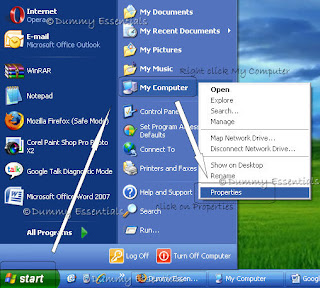
Click on "Start" followed by "My Computer" and right click on it to select “Properties”
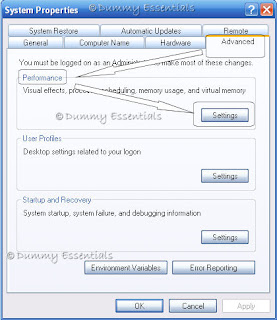
 In the "System Properties" dialog box, click the "Advanced" tab and in the "Performance" pane click on "Settings"
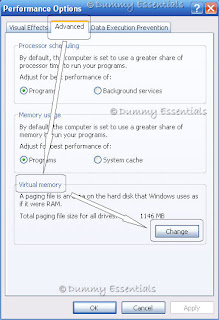
 In the "Performance Options" dialog box, click the "Advanced" tab. In the "Virtual memory" pane there, click "Change".
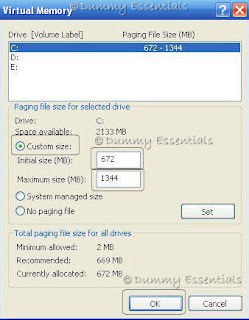
 In the Virtual Memory window, under "Custom Size" change the "Initial size" value and the "Maximum size" value to a higher value, then the one that is mentioned there, depending on the space available, mentioned above the custom size. (The total of Initial size and Maximum size should not exceed your total space available.) Finally click "Set", and then click "OK".
 After this, you wont see that annoying error popping up every now and then.
Not difficult to resolve this issue. All you need to do is to follow these few basic steps, as illustrated below, and not to see that error message popping up every now and then.
Click on "Start" followed by "My Computer" and right click on it to select “Properties”
In the "System Properties" dialog box, click the "Advanced" tab and in the "Performance" pane click on "Settings"
In the "Performance Options" dialog box, click the "Advanced" tab. In the "Virtual memory" pane there, click "Change".
In the Virtual Memory window, under "Custom Size" change the "Initial size" value and the "Maximum size" value to a higher value, then the one that is mentioned there, depending on the space available, mentioned above the custom size. (The total of Initial size and Maximum size should not exceed your total space available.) Finally click "Set", and then click "OK".
After this, you wont see that annoying error popping up every now and then.Shoot Up Your System Speed!
Have you ever wondered why your system goes slow all of a sudden when you are working on some application with few other applications open simultaneously. Lets see an example. Here we open an Excel file. Now just to check the status, how much space this process is using and whats our CPU usage, we go to Windows Task Manager (by clicking CTRL+SHIFT+DEL on your keyboard simultaneously) and click Processes tab and sort the list in descending order on Memory Usage. As we can observe here in the figure below, we notice that Excel.exe (2nd process from top) is using memory 13,604K and CPU usage is 55%.

Now go to Excel and minimise it. Recheck your windows task manager and check the amount of RAM being used by Excel.exe. Shocked? Its three times less and so is the CPU Usage. Readings for Memory usage going down to 4.424K and CPU usage falling down to 16%. Check the figure below which shows the same.
Just proves that if we minimise the applications that are not being used at that time, by clicking the (-) minimise button on top right of the application, we can increase the amount of available RAM by a huge margin. Infact depending on the applications open, the difference can be as much as 30-60% percent of extra RAM.
When we minimise an application it indicates that it won't be utilized by the user right now. Therefore, the OS automatically makes the application use virtual memory & keeps minimum amount of the code in physical RAM.





Listed/Ranked:
The Tech Directory
Cluster Maps