

Improve The Performance and Speed of Windows XP
Your computer's RAM decides how efficiently your PC will function. Upgrading the RAM is ofcourse the best option, but not feasible at all times, so the next best option is to keep your RAM free from cluttering programs or rather Dynamic Link Libraries (DLL's) When programs run they use DLL's, which contain programming instructions and applications to make a program run. Usually when we end a program, the DLL's that it uses are released from RAM, [most of the times], however there are DLL's that get seated in RAM and occupy unnecessary space and thus reduce the performance of your system and make it slow.
Now all we need to do to keep the performance of our PC at its best, is to ensure that all the DLL's related to a program get released by RAM as soon as we close that program. And this is what we need to do:
Click on "Start" menu and then select and click on "Run"

In the "Run" window type "regedit" and click on "OK"

In the "Registry Editor" window that opens, navigate to:
My Computer\HKEY_LOCAL_MACHINE\SOFTWARE\Microsoft\Windows\CurrentVersion\Explorer
In Explorer, in the right pane of the window, right click on an empty area, select "New" and then "Key"

Rename the key as "AlwaysUnloadDLL" and in the right pane of the window for the "(Default)", double click it and set it its value to "1" and click on "OK"

Reboot the computer for the change to take place. And the next time when you close any program, all the DLL's associated with it will also vacate that place in the RAM that they were occupying leaving your computer to function at its best!
Is Opera Hanging or Has Gone Slow?
Has your Opera browser gone slow all of a sudden or started hanging? Does it take a lot of time for a page to open? Well, there isn't much to it. All you need to do is to change your browser settings a little for it to function, just like it used to before. And this is what you need to do:
In your address bar, type:
opera:config
and hit enter.
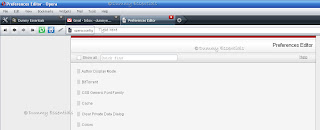 The browser page that would open is titled "Preferences Editor". In there, click on "Performance"
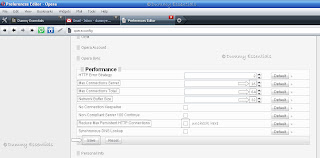
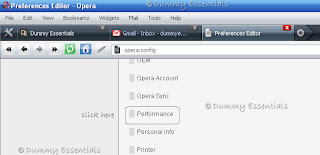 In the "Performance" area, for the following, change the figures to:
Max Connections Server: 16
Max Connections Total: 64
Network Buffer Size: 32
Reduce Max Persistent HTTP Connections: Uncheck the box
Click on "Save"
In the "Performance" area, for the following, change the figures to:
Max Connections Server: 16
Max Connections Total: 64
Network Buffer Size: 32
Reduce Max Persistent HTTP Connections: Uncheck the box
Click on "Save"
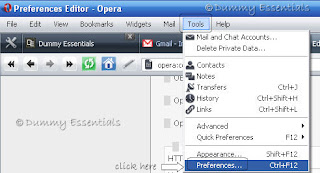
 Next, go to "Tools" menu, and select "Preferences"
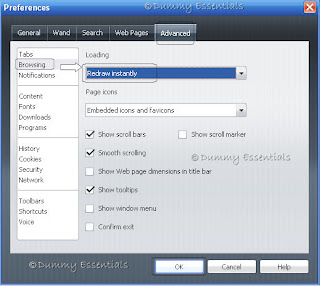
 In the "Preferences" window, under the "Advanced" tab, in the "Browsing" section, for the "Loading" select "Redraw instantly" from the drop down menu and click on "OK"
 The browser page that would open is titled "Preferences Editor". In there, click on "Performance"
 In the "Performance" area, for the following, change the figures to:
Max Connections Server: 16
Max Connections Total: 64
Network Buffer Size: 32
Reduce Max Persistent HTTP Connections: Uncheck the box
Click on "Save"
In the "Performance" area, for the following, change the figures to:
Max Connections Server: 16
Max Connections Total: 64
Network Buffer Size: 32
Reduce Max Persistent HTTP Connections: Uncheck the box
Click on "Save"
 Next, go to "Tools" menu, and select "Preferences"
 In the "Preferences" window, under the "Advanced" tab, in the "Browsing" section, for the "Loading" select "Redraw instantly" from the drop down menu and click on "OK"


Listed/Ranked:
The Tech Directory
Cluster Maps